If you regularly send similar emails, Thexyz Webmail allows you to create and reuse email templates directly from the composer.
This guide explains how to create templates, use personalization variables, and upload pre-designed HTML newsletters.
Accessing Webmail
To access Thexyz Webmail: https://mail.thexyz.com
Log in using your full email address and mailbox password.
Creating & Managing Templates
-
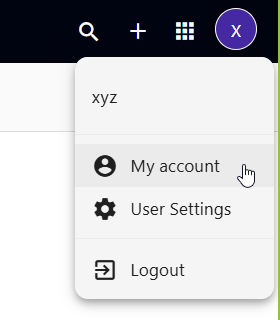
From the menu at the top-right, click My Account
-
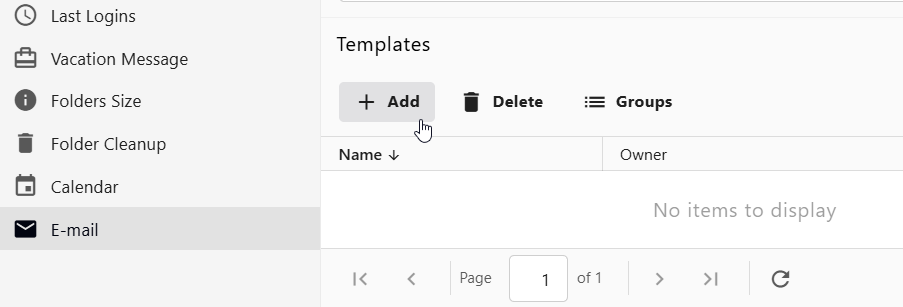
Open the Email menu from the navigation bar
-
Click Add to create a new template
Templates support dynamic variables to personalize messages automatically.
Variables use this format:
Available Template Variables
Thexyz Webmail supports merge variables that automatically insert recipient and sender data.
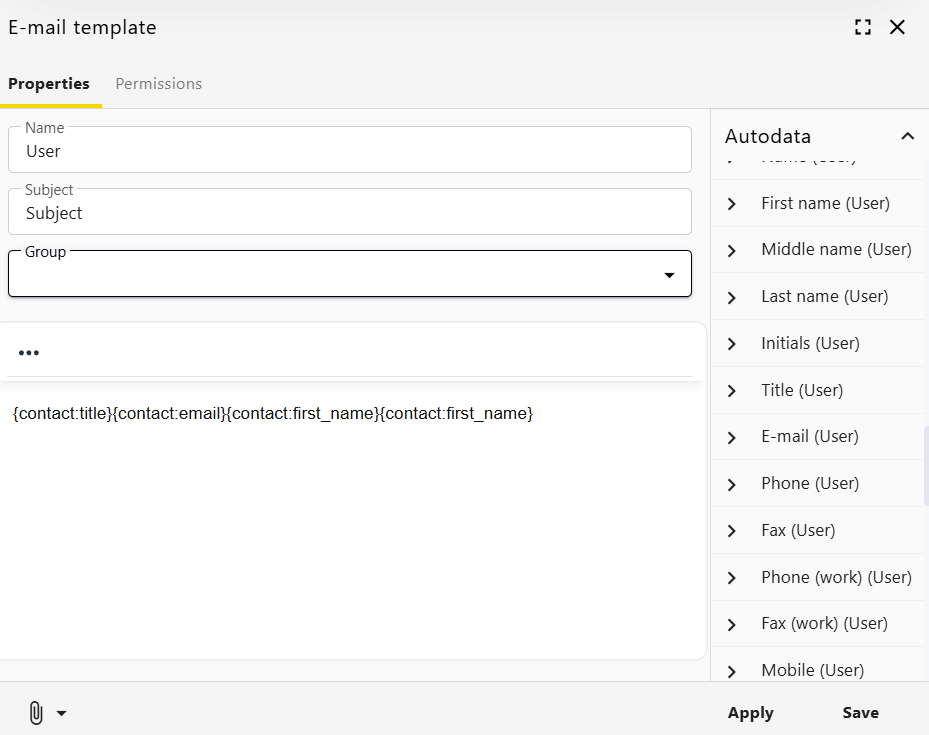
Contact Variables (Recipient Fields)
These pull data from the recipient’s contact record.
Basic Contact Information
Contact Arrays
These return multiple values depending on the contact record.
Address structure example:
Additional Contact Fields
Custom contact fields are also supported. Refer to your template syntax documentation for proper formatting.
Creator Variables (Sender Information)
These pull information from the user creating the message:
Other Useful Variables
Unsubscribe Link
You can automatically include an unsubscribe link in newsletters:
Current Date
This inserts the date/time when the message is sent.
Uploading a Pre-Designed HTML Newsletter
Thexyz Webmail allows you to upload a pre-built HTML email template.
This is useful if you use tools like BeeFree or other email designers.
Required ZIP File Structure
Your uploaded file must be a .ZIP containing:
Important Requirements
-
The main file must be named index.html
-
All images referenced in index.html must be located inside the /images/ folder
-
External image paths will not be imported
-
Incorrect structure will prevent extraction
Uploading the Template
-
Open the Newsletter Composer
-
Click Upload Message
-
Select your
.ZIPfile -
Once uploaded, the composer switches to read-only mode
This ensures your imported HTML design remains intact.
Best Practices
-
Always send a test email before sending to clients
-
Include an unsubscribe link for newsletters
-
Keep HTML layouts simple and mobile-friendly
-
Avoid linking to externally hosted images unless intentional
-
Verify all merge variables before sending bulk messages